dock-g

Features in detail

Six things dock-g does well — explained properly instead of in one line.

Stacks under control

All compose stacks at a glance: status, start, stop, and restart with a single tap.

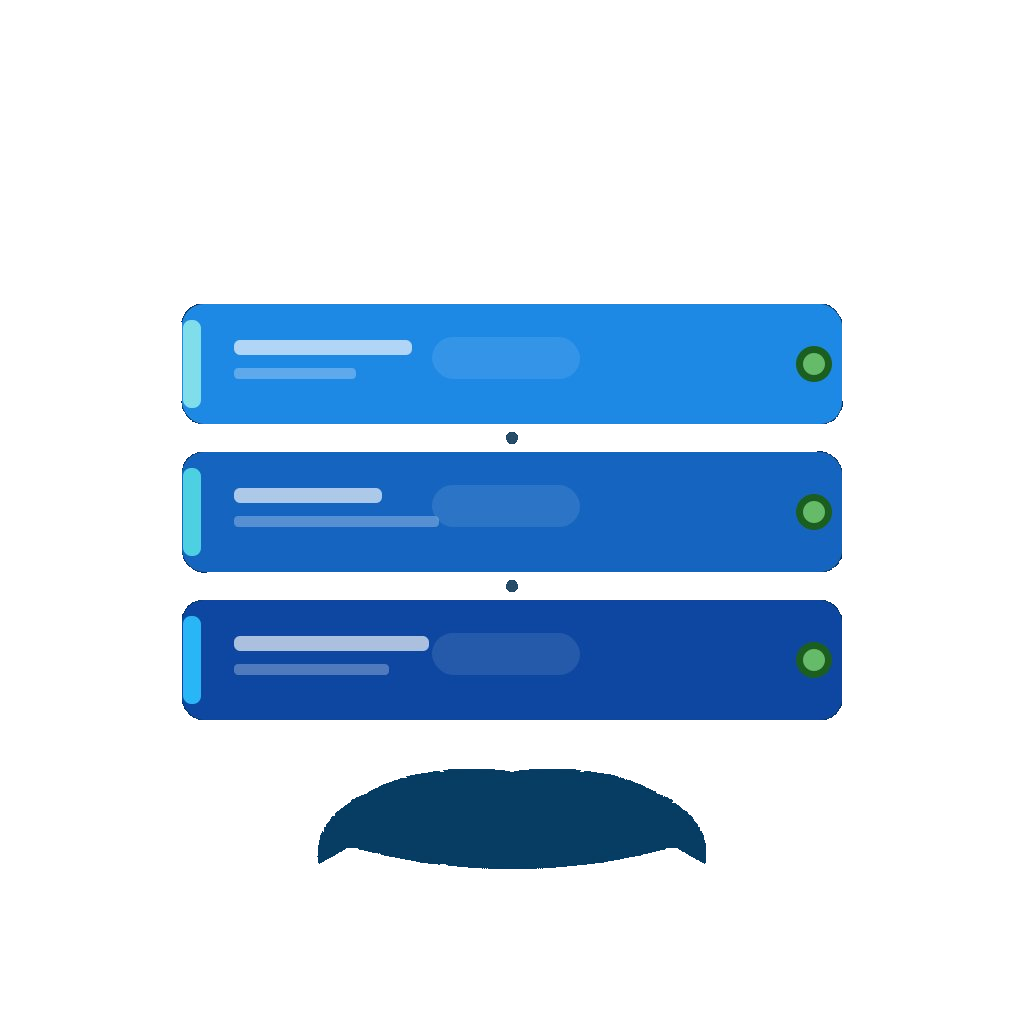
The stack overview shows every compose stack as its own tile with a coloured monogram and its current state. Filter chips narrow the list down to what matters right now: everything running, everything stopped, everything with a pending update, or the archive. Stopped stacks start straight from the list, no need to open the detail view.

In the detail view you edit the compose.yaml, start, stop and rebuild. Ring gauges for CPU, memory and disk show where the pressure is before you dig into the logs.

Handy when creating new stacks: paste a ready-made docker run command and dock-g converts it into a compose.yaml right on the device — the command is never uploaded anywhere.

An orange pill marks every stack with a pending image update — scheduled or immediate.

On servers running Dockge-Enhanced, the Image Watcher regularly checks whether newer versions of your images are available. In the stack list an orange pill marks every affected stack, so you see at a glance where something is waiting.

For each image you decide how it should be handled: update immediately, at a fixed time of day, or not at all. While an update runs, a waiting indicator shows progress; the pill disappears the moment you trigger it and only returns once a genuinely new image has been found.

Dockge itself is deliberately never auto-updated — otherwise the management interface would pull the rug from under itself mid-operation. Without Dockge-Enhanced, update detection isn’t available; stack management works fully regardless.

Live logs & terminal

Real-time container logs right on your iPhone — with search and color highlighting.

Logs stream live while you watch — with search, colour highlighting and, on Dockge-Enhanced, ISO 8601 timestamps so events can be lined up properly. Copy or share individual passages straight from the view.

When the log isn’t enough, the built-in SSH terminal drops you onto the host. The SSH access is linked to the matching Dockge server — dock-g suggests the link based on the IP address, and you can set it manually as well.

One SSH access can be linked to several Dockge instances on the same machine, for example when one instance is publicly reachable and a second runs on the local network only.

Multiple servers

Connect any number of Dockge instances and switch between them seamlessly.

Add as many Dockge instances as you like and switch between them from a menu in the stack overview title — no detour through settings. A coloured dot next to the server name shows whether the connection is up.

Each server can have its own colour theme from five palettes: Classic Blue, Sunset, Forest, Ocean and Monochrome. That’s more than decoration — if you run production and test environments side by side, the colour alone tells you which one you’re poking at.

For signing in, dock-g supports password managers and the iCloud Keychain; two-factor codes are suggested automatically. Saved credentials are reused reliably, even after a brief connection drop or a longer spell in the background.

Notifications

If a stack goes down, you'll know — without opening your laptop.

Push notifications are enabled per server via the bell icon in the stack overview. Grey means off, tinted means active — so you decide which environment is allowed to reach you outside working hours.

For every server you set a check schedule with time of day and weekdays. That way the test box won’t wake you at three in the morning while production stays monitored around the clock.

With backup management enabled, an “Overdue” badge additionally marks any backup whose last run is older than the configured interval.

Your data stays yours

Direct connection to your server. No cloud, no tracking, no accounts.

dock-g connects exclusively to the Dockge servers you enter yourself. There is no intermediary service, no user account and no registration.

No analytics, tracking or advertising services are built in, and crash reports don’t go to third parties. Credentials and SSH keys live exclusively in the iOS Keychain on your device.

The docker run converter works locally too: your command — which often contains paths, ports and credentials — never leaves the device.

← dock-g